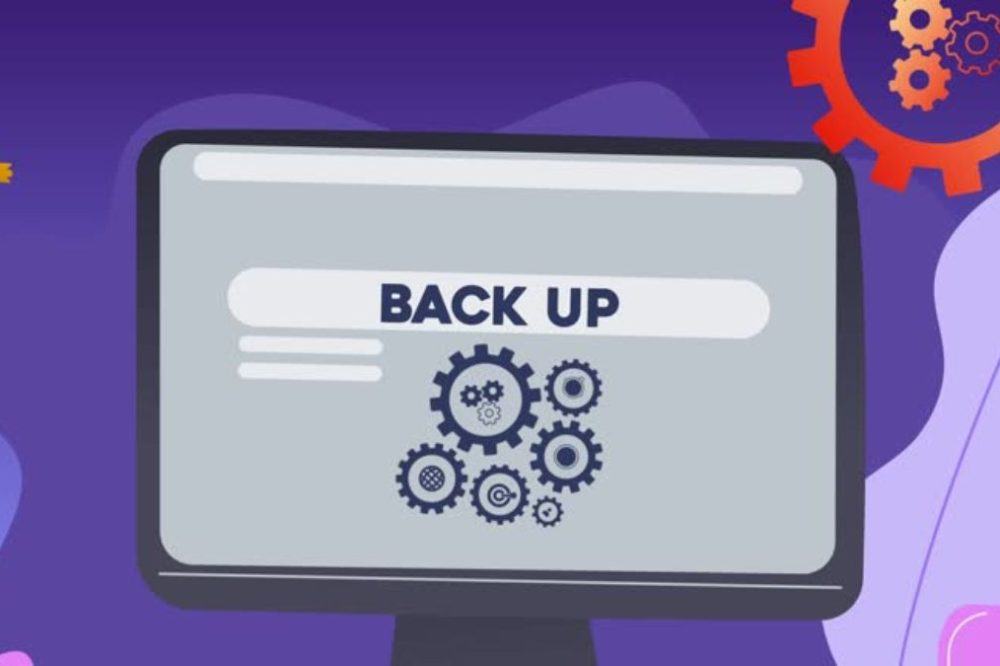
The same thing is the dread for every website owner, you wake up one morning, log in and your site is not working, hacked or just gone. A bad plugin update, a hosting crash, an accidental file deletion or a malware attack will all leave you with hours or days of recreating content from scratch if you don’t have a current backup. One gets you back online within minutes.
Website backups are the most under appreciated part of web infrastructure. Most site owners want their hosting company to accomplish this — some do, most don’t do it well enough and nearly none of them will restore it for free if something goes wrong. The right website backup program lets you backup automatically, with safe storage away from your server and one click restore when you need it most.
In this guide, we analyze the best website backup solutions and plugins in 2026 – for WordPress sites, non-WordPress platforms and enterprises that require enterprise-grade backup and recovery tools.
Website Backups in 2025: Why You Can’t Afford to Skip Them Anymore
Risks to website data have increased. Automated attacks hit WordPress sites thousands of times a day. Sometimes plugin and theme upgrades break sites totally. Hosting provider data loss. Site migrations and updates may go very wrong for developers. And the threats of ransomware on small business websites have skyrocketed.
These aren’t guesses – these things are happening to real websites, every day. Businesses are up in minutes with recent, certified offsite backups. The rest of us takes days (and lots of money often) to get over it.
And then there’s the SEO angle. When a site remains down for hours or days, it notifies Google that the site isn’t reliable. If your site goes down, rankings that took months to build can evaporate in minutes. A decent way to backup and restore will protect your material and your organic traffic too.
What to Look for in a Web Site Backup Program
Before we get into specific tools, here’s what makes a backup solution really good vs one that sounds good until you actually need it:
- Automated scheduling: manual backups are only beneficial if you remember to do them All active sites should be doing daily (or more frequent) automated backups.
- Offsite Storage: If the problem is your website server, then backups that are on the same server as your website are useless. Look for alternatives that sync to other cloud storage such as Amazon S3, Google Drive, Dropbox or their own cloud.
- Incremental backups: big sites need full-site backups that are time and storage consuming. Incremental backups only back up the changes since the last backup which saves storage costs and backup window time.
- One-click restore: time is of the essence when your site is down. When you can least afford it, tools that require sophisticated manual repair processes just add stress and downtime.
- Database and files: a full backup contains both your database (content, settings, user data) and your files (themes, plugins, uploads, code). Partial backup gives incomplete restore.
- Backup verification: a silent failure is worse than no backup. Look for tools that can check that your backups are complete, and that can tell you if they’re not.
- Encryption: Backups carry crucial information. They must be encrypted in transit and at rest.
- Retention policy: how many versions of backups are kept? You want enough history that you can roll back past a problem you didn’t catch immediately (like a hack that went unreported for a week).
- Easy migration: The best backup tools are also migration tools, so you can utilize a backup to effortlessly migrate your site to another server.
Best WordPress Backup Plugins
1. UpdraftPlus (free)
There’s a reason UpdraftPlus is the most installed WordPress backup plugin with over 3 million active installs. It backs up files and the database separately or together, supports almost all the major cloud storage locations (Amazon S3, Google Drive, Dropbox, OneDrive, FTP and others), and restores instantly right from the WordPress dashboard without having to manually access files.
The free version does a fantastic job of backing up scheduled backups and integrates with cloud storage. The premium edition has incremental backups, multisite support, scheduled backups before updates, and migration tools.
Best for: WordPress sites of any size who want a stable, well-supported backup plugin with lots of cloud storage options.
Note: The free version does not provide incremental backups thus you may encounter a long backup process on a large site with a lot of media assets.
Pricing: Free. The cost is $70 a year for 2 sites.
2. Jetpack Backup (VaultPress)
Jetpack Backup (formerly VaultPress) is the backup solution of Automattic itself, built by the team behind WordPress itself. Best feature: real-time backup — automated backup of any database update as it occurs, not once a day. This decreases the potential data loss to seconds vs hours in the case of e-commerce sites or membership sites that have data updating on a regular basis.
Restoration is quite smooth: pick any restoration point from the activity log and roll back with a single click. The activity log also tells us exactly what changed leading up to the occurrence, which is a big help in figuring out what went wrong.
Best for: WooCommerce sites, membership sites, and any WordPress site where losing a couple of hours’ worth of database changes would be costly.
Pricing: Daily Backup starting at $9.95/month. Backup Realtime starting at $24.95/mo.
3. BlogVault Backup
What makes BlogVault special is its independent cloud architecture: your backups are stored on BlogVault’s own servers, and not on a third-party cloud storage that you need to set up yourself. Which makes it a whole lot easier to set up. It offers real-time backups, one-click staging environments and a very reliable recovery mechanism that has been tested on thousands of sites.
Its MergeBot feature, which provides backup functionality and staging environments, makes it popular with developers.
Best for: WordPress developers and agencies working on multiple client sites, who need reliable backup with built-in staging and migration options.
Pricing: Personal plan starting from $7.40/month/site. Agency plans offered.
4. Duplicator Pro
Duplicator is the greatest tool for moving and replicating wordpress sites but its backup features have also grown a lot. It creates whole site packages (files + database) that are ready to be moved to a new host, therefore it’s great for developers that move sites between environments often.
The free version is limited. The Pro version includes scheduled backups, cloud storage, large site support and multisite compatibility.
Best for: Developers/agencies who frequently clone/migrate WordPress sites and want to use the same solution for both backup and migration.
Pricing: Free (Limited) Pro from $69/year.
5. Backup Buddy Plugin
iThemes’ BackupBuddy is one of the oldest dedicated WordPress backup plugins, and offers a solid option for full site backups. It backs up everything – database, themes, plugins, uploads and WordPress core files – and sends backups to cloud storage destinations or iThemes’ own BackupBuddy Stash storage. ImportBuddy is a single plugin that handles migration and restoration, which is useful in case your WordPress dashboard is not accessible.
Best for: WordPress sites that desire a full all-in-one backup solution with built-in remote storage and a standalone restore program that can be used even when WordPress is broken.
Pricing: Starts at $99 per year for 1 site.
6. Time Capsule WordPress
WP Time Capsule focuses on incremental backups – it only backs up the files and database rows that actually changed since last time. This makes it particularly efficient on large sites where backup processes may be done in seconds rather than minutes. It works with Amazon S3, Google Drive and Dropbox directly.
Best for: Large WordPress sites with massive media libraries that find full daily backups too slow or too storage-hungry.
Pricing: from $49/year for 1 site.
7. ManageWP (Orion)
ManageWP is a WordPress management program and one of its key features is backup. Other features include performance monitoring, security scanning and update management. It allows agencies that manage several WordPress sites to include backup in the same dashboard where they do other maintenance work.
Best for: WordPress firms and developers with 10+ client sites who need backup as part of larger site management and maintenance operations.
Pricing: Safe Updates and Backup available in free tier with constraints. Premium backup from $2/month/site.
Best website backup tools (non WordPress)
8. CodeGuard
CodeGuard is a web site backup service that works with any web site platform; WordPress, Joomla, Drupal, custom developed sites and more. It connects to your server using FTP/SFTP or cPanel and takes daily automated backups, which are saved in Amazon S3. It offers one-click restore with visual change detection so you can see precisely what changed between backups.
Best for: Non-WordPress sites, agencies with mixed-platform portfolios and hosting resellers who need a platform-agnostic backup solution.
Pricing: $5/month/site & above. Business plans.
9. Sucuri Backups
You’re probably more familiar with Sucuri as a website security platform, but it’s backup features are very much tied into its security scanning and malware removal offering. This combination is very handy, because if Sucuri detects a virus infection, you can immediately restore a clean backup trough the same dashboard. This makes perfect sense for firms who consider security and backup as one and the same.
Best for: Small businesses looking for a backup solution that offers website security monitoring and virus removal.
Pricing: Basic platform from $199.99/year (includes security + back-ups)
10. Acronis Cyber Protection
Acronis is an enterprise-level backup and disaster recovery software platform used by organizations of all types to protect data in a comprehensive manner. For dedicated servers or VMs, Acronis offers image-level backup (full server snapshots), granular file recovery and even ransomware protection built right into the backup process itself.
Best for: Businesses with dedicated servers or VMs looking for enterprise-level backup with image-level restore and ransomware protection.
Pricing: Enterprise pricing varies; cloud subscriptions begin at $49/year for basic use cases.
11. Backup Manager Plesk/cPanel
Most hosting control panels (cPanel, Plesk) provide a backup feature. They are a simple backup alternative provided by your hosting environment but they do not have the full features of dedicated programs. The main drawback They commonly back up to the same server so they are useless if the server itself breaks.
Best for: An additional layer of backup to add to (not replace) a proper off site backup solution.
Pricing: Included with hosting plans that provide access to cPanel or Plesk.
Where to Store Your Backups? Cloud storage websites
The golden rule of backup is the 3-2-1 rule. 3 copies of your data on 2 different types of storage and 1 copy off-site. For websites this usually entails:
- Your Live Website (original)
- Backup on the backup tool’s own infrastructure or to a different server
- Copy 3: Back up to another cloud storage (S3, Google Drive, Dropbox)
Best Cloud Storage Services for Website Backup:
- Amazon S3: the gold standard for backup storage. Reliable, super durable (99.999999999% durability), cost effective at scale and supported by practically every backup tool. $0.023 per GB each month.
- Google Drive: is a known product that’s easy to set up and included with Google Workspace memberships. Works with most of the finest WordPress backup plugins. Not as durable or scalable as S3 for massive amounts.
- Dropbox: Easy to use and popular but free storage is somewhat limited (2GB) so it’s not a good choice for huge sites unless you pay for a premium plan.
- Backblaze B2: Way less than Amazon S3 ($0.006/GB/month), same reliability. Good for large sites with large storage needs and well supported by backup tools.
- UpdraftVault / BlogVault proprietary storage: Some backup solutions have their own cloud storage which makes setup easier since you don’t have to specify third-party storage. Simple yet vendor dependant.
Backup Frequency: How Often Do you Need To Backup
How often you should backup depends on how often your content and data change:
- E-commerce stores (transactions/day, customer data, orders): Database backup real-time or hourly
- Active blogs (daily posting, regular comments): Daily backups minimum.
- Business brochure sites (rarely updated): Weekly backups are okay, daily preferable
- High traffic media sites: Hourly DB / real-time DB Files backups daily
As a rule of thumb: how much data are you prepared to lose? If losing a day’s worth of orders would be catastrophic you need more frequent backups than once a day. If you’re posting new content twice per week, daily backups are more than plenty.
How many copies should I keep as a backup?
Retention policy is more crucial than most assume. One daily backup implies if your site was hacked 3 days ago (and you didn’t notice) you have no clean backup to restore to. Minimum suggested retention:
- Daily Backups: Retain for at least 30 days (ideally 90 days)
- Weekly backup: save 12 weeks
- Monthly backups: Keep for 12 months
Most excellent backup systems allow you to establish a retention policy. The longer you keep the more you pay for storage but the longer your safety net – especially important as malware attacks may sometimes go unreported for days or weeks before they do noticeable damage.
Test Your Backup
The most hazardous backup is the one you have never tried. You could have a backup that seems fine but fails silently, has partial data or restores with errors that you don’t discover until the very moment you need a working restore.
Best Practices for Backup:
- Restore your backup to a staging environment and evaluate the proper operation of the site on a monthly test restore.
- Review backup logs – after each automated backup, review the logs of your backup tool to see if it was successful
- File Count Verification – make sure that backup archives include the right number of files
- Restoration speed test – Find out how long restoration takes before an emergency occurs
If you never tested a backup you should never trust it.
Backup Tools Comparison Summary
| Tool | Platform | Type | Cloud Storage | Starting Price |
|---|---|---|---|---|
| UpdraftPlus | WordPress | Scheduled | S3, Drive, Dropbox | Free / $70/yr |
| Jetpack Backup | WordPress | Real-time | Proprietary | $9.95/mo |
| BlogVault | WordPress | Real-time | Exclusive | $7.40/mo |
| Duplicator Pro | WordPress | Scheduled | S3, Drive, Dropbox | $69/year |
| BackupBuddy | WordPress | Scheduled | S3, Stash | $99/year |
| CodeGuard | All platforms | Daily | Amazon S3 | $5/month |
| Sucuri | Any platform | Daily | Proprietary | $199.99/year |
| Acronis | Server Image | Scheduled | Proprietary/S3 | Custom |
In the end
Website backups are the least expensive form of insurance for your online business – and the easiest to postpone until it’s too late. The ideal website backup option for you will depend on your platform, website size, and how much data you’re willing to lose. For WordPress sites, you’ll do well with UpdraftPlus (free), Jetpack Backup (real-time), or BlogVault (developer-friendly); for non-WordPress sites, look into CodeGuard or a hosting-level backup solution.
Whatever you choose, make sure you have three things: an automatic schedule so that backups happen without you having to remember; offsite storage so that your backups survive server failures; and tested restoration so that you know that your backups actually work when you need them.
Put your backup solution in place today – before you need to. The cost of any backup software is low compared to the cost of rebuilding your site from start.
Common Questions
1. What is the best WordPress backup plugin?
It’s the most popular alternative, due of its reliability, the wide range of cloud storage options, and the large free tier. Jetpack Backup or BlogVault are ideal for sites that need real-time backup (e-commerce, membership sites). ManageWP offers backup and general site management for agencies who handle many sites.
2. I have a hosting firm that backs up my site, do I need a backup plugin?
Yes. Backups provided by your hosting company are an extra, and they are not enough. Many hosts backup at their own schedule (typically weekly), maintain backups on the same infrastructure (vulnerable to server failure) and charge for recoveries. A stand alone backup plugin gives you control over how often you backup, where you backup and how you restore – everything you need to feel secure about your data.
3. How much space do website backups take up?
That depends on the size of your site. A basic WordPress blog may be 500MB every backup, a large ecommerce site with thousands of product images may be 20GB+. The first full backup is a lot but with incremental backups the daily changes may be as low as 1-10MB a day. Cloud storage is around $0.006-$0.023/GB/month. Even massive backup archives are cheap.
4. How to restore WordPress site from backup?
Most backup plugins will let you restore with 1 click from the WordPress dashboard if you have access, or they’ll offer a standalone restoration script for when WordPress itself is broken. In UpdraftPlus go to Settings → UpdraftPlus Backups → Restore and pick your backup. Choose a restore point from the Jetpack Backup activity log. Always restore to a staging site before you need to restore in an emergency.
5. What is the 3-2-1 backup rule and should I use it?
The 3-2-1 rule means 3 copies of your data, on 2 different media types, with 1 copy offsite (in a different geographical place than the other copies). For websites, that means: your live site + a copy in your backup tool’s cloud + a copy in a different cloud storage (S3, Google Drive) This is to ensure that no single failure (server crash, cloud provider outage, ransomware) may wipe all copies of your data at once.

Enjoyed this article?
If this guide helped you, consider supporting Rough Diary. Your support helps us continue creating practical, informative, and useful AI and technology content.