
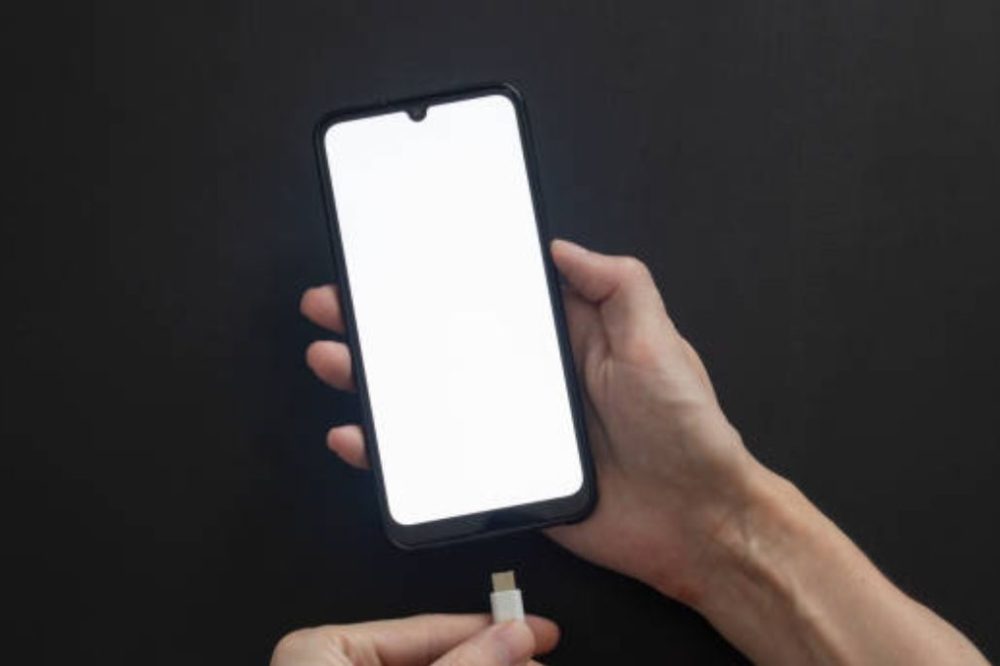
You plug the phone in and nothing happens. No charging symbol, no sound, no life indicator. Before you freak out or spend $150-200 on a fix you may not even need, it’s worth knowing what the actual numbers are: research shows that less than 15% of “phone not charging” issues are caused by actual hardware failure, while nearly 35% of charging problems come down to something as simple as a damaged cable or adapter. Most of the rest are from a dirty port or a software fault – all fixable in a few minutes at home.
This tutorial runs thru a proper phone not charging fix checklist for both iPhone and Android, starting with the fixes that solve the great majority of problems, and then moving into the less common causes.
Begin With the Basics: Cable, Adapter, and Power Supply
Always start here before presuming something more serious is wrong. The biggest cause of charging problems is a broken cable or adapter.
- Try another cable. Cables are bent, pulled and worn all the time, which damages the interior wire that is not apparent from the outside. Many of the cases that people think are a dead battery are promptly solved by switching to a known-good cable.
- Try another wall adapter or power source. The charging brick itself can malfunction internally or just not provide adequate power. Try a different converter. Also try a different wall outlet or USB port to rule out the power source.
- Don’t skimp on certified accessories. A good quality adaptor with a bad quality cable will still charge slowly or unreliably. For USB-C devices, look for USB-IF approved cables with E-Marker chips. For Lightning-based iPhones, look for MFi-certified cables. Real or fully certified third-party cables are worth the slight difference in price.
Clean the Charging Port
Dust and lint can build up in your charging port over time. Even if your cable and adapter are both totally fine, anything in your charging port can physically block the connection between your cable and the internal pins in the charging port.
How to clean it safely:
- Blow out debris with a can of compressed air or use a soft-bristled brush (a new, clean toothbrush works).
- Never use pins, needles or other sharp metal instrument as these might harm the sensitive charging pins inside the port and turn a simple cleaning into an expensive repair.
- Before cleaning your phone, switch it off and allow it to rest a little before connecting it back in.
Restart or Force Restart Your Phone
A basic restart can clear out temporary software issues that can interfere with charging and a force restart goes one step further by fixing blocked battery-percentage displays and charging glitches that a normal restart couldn’t.
How to restart forcibly:
- Most Android phones: Hold the Power button and Volume Down button simultaneously for 10-20 seconds.
- iPhone 8 or later, including the latest models: Tap and immediately release Volume Up. Tap and quickly release Volume Down. Hold Side until you see the Apple logo.
- Earlier iPhones/Androids: Usually just holding Home + Power (earlier iPhones) or Power by itself.
Checking for Software Updates
Bad OS updates can really bring charging bugs – it’s not uncommon, it has happened with a number of Android OEM releases in 2026 particularly. Charging troubles might be due to software, too, so before you assume a hardware issue, check your settings to see if there is an update available. Installing the latest available version typically includes patches for known issues.
Check whether “Optimized Battery Charging” Is the Real Culprit
If your phone always halts at exactly 80% rather than 100% when charging, then this is very likely not a fault at all – it’s an intentional feature. Optimized Battery Charging is available on newer iOS and Android devices. It learns your daily patterns and will purposefully stop charging at about 80% to decrease wear and tear on the battery over the long term. It then finishes the last bit of charging closer to when you normally disconnect your phone.
To check: Go to Settings → Battery → Battery Health & Charging (iPhone) or the equivalent battery settings for your device and temporarily turn off the feature to see whether it’s the culprit.
Check the battery condition (especially on older phones)
For phones that are two or three years old or older, battery health degradation might cause charging to feel abnormally slow or a battery percentage to behave strangely. On iPhones, you can see the maximum capacity of the battery in the settings (Settings > Battery → Battery Health), or use a third-party application like AccuBattery on Android to see more specific health indicators.
Beware of Overheating (or Overcooling)
Lithium-ion batteries may be safely operated throughout a temperature range of about 0°C to 35°C (32°F to 95°F). After you pass that window, your phone’s battery management system will purposely stop charging to safeguard the battery’s health – it’s a feature, not a bug.
The fix: Put your phone in a room temperature setting, remove any case that might be trapping heat and try charging it again after 15-20 minutes.
Attempt Safe Mode (Android Specific)
If you suspect a third-party program may be affecting your charging behavior, you can boot into Safe Mode, which will temporarily block all third-party apps. This will let you to see if the issue goes away with all third-party apps not operating. If charging works okay in Safe Mode, a newly installed app is likely the reason. Consider what you installed immediately before the problem started.
Platform-Specific Quirks
- iPhone Charging Weirdness: “This accessory may not be supported” notice – Generally this indicates the cable is not MFi-certified, or that the Lightning/USB-C connector is unclean or damaged. Use a real Apple cable or a third-party cable that has been appropriately certified. MagSafe and wireless charging problems – verify that you don’t have a case or other accessory on your phone that’s too thick to allow consistent magnetic alignment, and be sure that the charger itself is MagSafe-certified and not just a generic wireless pad.
- Android Charging Peculiarities: Fast charging standards are all over the place – different Android manufacturers utilize different fast charging protocols and using an incompatible charger might lead to delayed or irregular charging, even if everything is officially “working”. Adaptive charging features – Many Android phones have their own version today that might seem to pause or slow charging on purpose, much like iPhone’s Optimized Battery Charging.
When to Consider a Factory Reset
If none of the preceding methods have solved the problem, a factory reset can tackle deeper, more persistent software faults — but consider it a last resort before repair, not an early troubleshooting step.
- First of all, backup your data – images, contacts and crucial files to cloud storage or a PC. This one is non-negotiable.
- Android: Settings -> System -> Reset options -> Erase all data (factory reset)
- iPhone: While there’s no direct equivalent to Safe Mode, try removing any newly added apps first. If troubles continue, back up your device and reset it in Settings → General → Transfer or Reset.
When to Seek Professional Help
If you’ve ruled out cable, port, software and temperature issues and your phone still won’t charge, it’s probably a hardware problem – a damaged charging port, a dying battery or a defect with an internal component – and you’ll need expert help rather than a DIY remedy. Yes, a nuisance, but forcing a charge on a phone with a physically damaged port or bulging battery is a real safety concern.
Signs it’s time to call in a professional repair:
- Visible bending, corrosion or damage to charging port post cleaning.
- The phone only charges from time to time if the cord is held at a certain angle.
- Battery health has been hit hard and the phone struggles to retain a charge, even when it does charge up.
- Any signs of a bulging battery (slightly puffed-back panel or screen).
What NOT to Do
- Don’t use pins, needles or sharp metal objects to clean the port – you risk bending or breaking the delicate charging pins inside.
- Ignoring a swollen battery is not just a cosmetic problem, it is dangerous to your safety. Do not use or charge the gadget until it is professionally evaluated.
- Don’t keep trying to make a connection that isn’t working: too much effort can bend or break pins in the port that a lighter touch and adequate cleaning would have saved.
- Don’t assume the battery is dead without trying another cable and adapter first. Many users assume battery failure when the real problem is merely a worn cable.
Summary
The appropriate fix for your phone not charging is usually always more straightforward than it feels in the time. Start with the basics: a different cable, a different adapter, a clean port, and a restart – these alone will fix most problems without you opening your wallet. From there, check for software upgrades, ensure that Optimized Battery Charging is purposefully stopping your charge at 80%, and rule out temperature before presuming anything more serious.
Real hardware failure is a genuine minority of situations, but it does occur and when it does a damaged port, failing battery or internal issue requires professional treatment, not continuous DIY debugging. Follow this checklist step-by-step, and in most circumstances, you’ll have your phone charged in just a few minutes – without ever needing to visit a repair shop.
Frequently Asked Questions
1. Why does my phone show is charging yet the battery does not go up?
This is frequently caused by a cable or adapter that is making a poor connection, providing less power than the phone is utilizing while active. Try a different cable and adapter, and consider placing the phone in low-power mode while charging to test. A hard restart can also fix a stalled battery-percentage display caused by a software error, not because the device isn’t charging.
2. Why does my phone stop charging when it gets to 80%?
It’s highly possible that a function called Optimized Battery Charging is included in modern iOS and Android. It learns your habits and stops charging at roughly 80% to avoid long term battery wear and then finishes charging closer to when you usually disconnect your phone. To be sure you may check and disable it for a moment under your battery settings.
3. Can I clean my phone charging port by myself?
Yes, you can use the correct instruments – compressed air or a soft-bristled brush are safe bets. Don’t use pins, needles or other sharp metal instrument since these might harm the sensitive charging pins inside the port and transform a simple cleaning job into an expensive repair.
4. How can I tell if my phone charging issue is a cable issue or hardware?
To determine the source most quickly, test with a different, known-good cable and adapter – if charging works normally with alternative accessories, the original cable or adapter was likely the problem. If the phone still won’t charge properly with several different cables, adapters, and outlets after cleaning the port and rebooting, then it is most certainly a real hardware problem that needs to be professionally repaired.
5. Why does my phone not charge in hot or cold weather?
The safe working temperature range of lithium-ion batteries is about 0°C to 35°C (32°F to 95°F) and your phone’s battery management system will deliberately cease charging outside of that range to prevent harm. Put the phone in a room-temperature environment, remove any case that may be trapping heat, and wait 15 to 20 minutes before trying to power it back on.

Enjoyed this article?
If this guide helped you, consider supporting Rough Diary. Your support helps us continue creating practical, informative, and useful AI and technology content.